
I am going to show you exactly what to do when your purchased backlinks are showing as unindexed in Google Search Console (GSC). If you have spent your hard-earned cash on guest posts, niche edits, or web 2.0 links, only to find they do not exist in your GSC links report, do not panic.
I have been building, testing, and indexing links for years. In this guide, I will give you the exact step-by-step diagnostic blueprint to find out why they aren’t indexing, how to fix it for free without premium tools, and how to make sure you get real keyword ranking results.
Here is the brutal truth that most self-proclaimed “white hat” agencies and sketchy link vendors will never tell you: Google does not crawl or index every link on the web. In fact, with Google’s core updates, the search engine has become incredibly strict about what it chooses to keep in its index.
You write a killer piece of content, you buy backlinks to push your keyword rankings, and then… nothing happens. You open up Google Search Console, look under the “Links” section, or try to inspect the seller’s URL, and you see absolutely nothing. Or worse, the seller’s URL says “Crawled – currently not indexed.”
Does this mean you got scammed? Not necessarily. But you need to roll up your sleeves and audit these links immediately. Let’s get right into the step-by-step diagnosis.
Step 1: Check the Robots.txt File of the Seller’s Site
This is the first thing I check, and it is a massive footprint for lazy or scammy link sellers. Some vendors will take your money, publish your guest post, show you the live link, and then block Googlebot from ever crawling that folder via their robots.txt file. They do this to hoard authority and prevent their site from getting flagged for selling links.
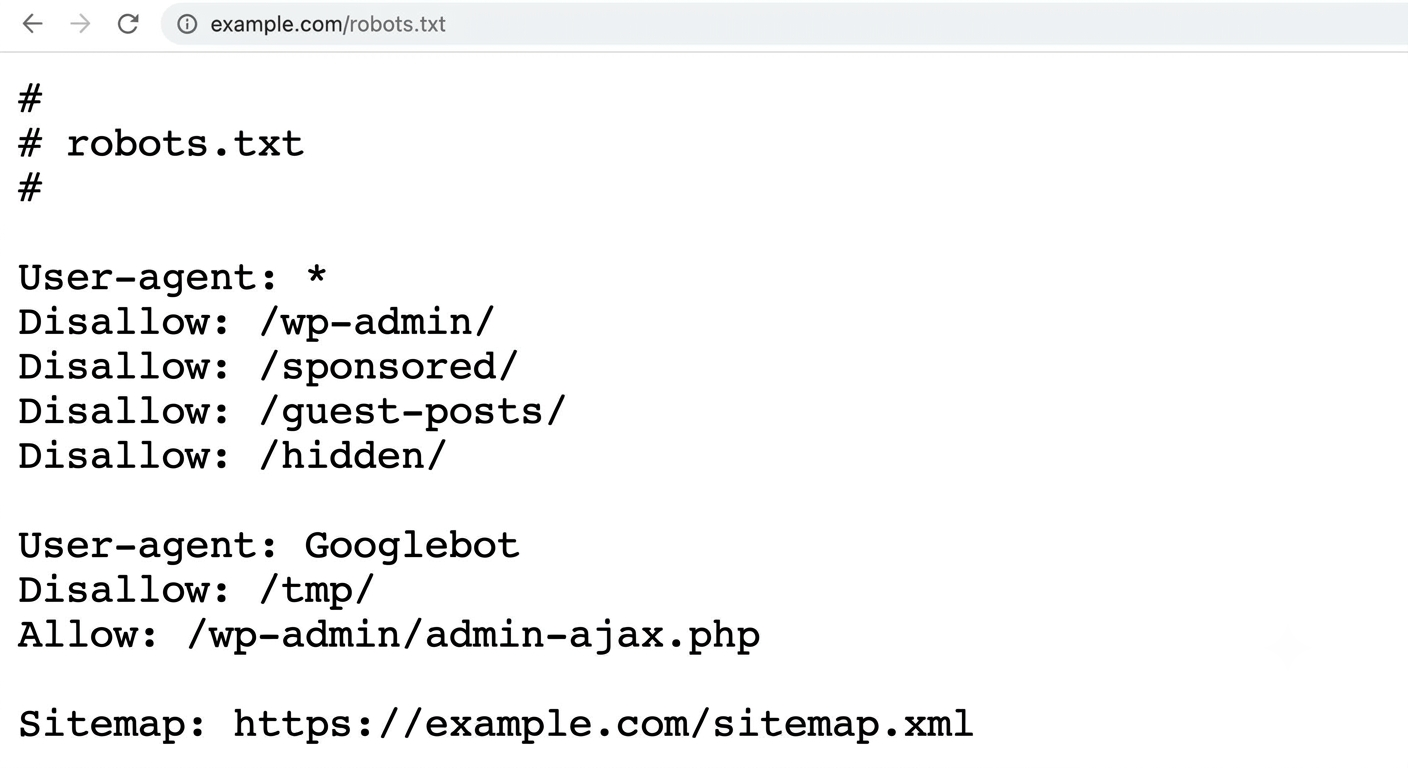
How to check it:
-
Go to your browser and type in the seller’s root domain followed by
/robots.txt(e.g.,https://example.com/robots.txt). -
Look for any line that says
Disallow:. -
Check if the folder containing your guest post or link (such as
/sponsored/,/guest-posts/, or/wp-content/) is disallowed.
Important: If Googlebot is blocked here by the host’s directives, your link will never show in Search Console. For more details on how Google interprets these rules, you can review the Google Search Central robots.txt specifications.
Step 2: Inspect the Page Source Code for “Noindex” or “Nofollow” Tags
I see this happen all the time. A seller publishes your link on a clean-looking page, but they sneakily inject meta tags in the HTML header that tell search engine spiders to completely ignore the page.
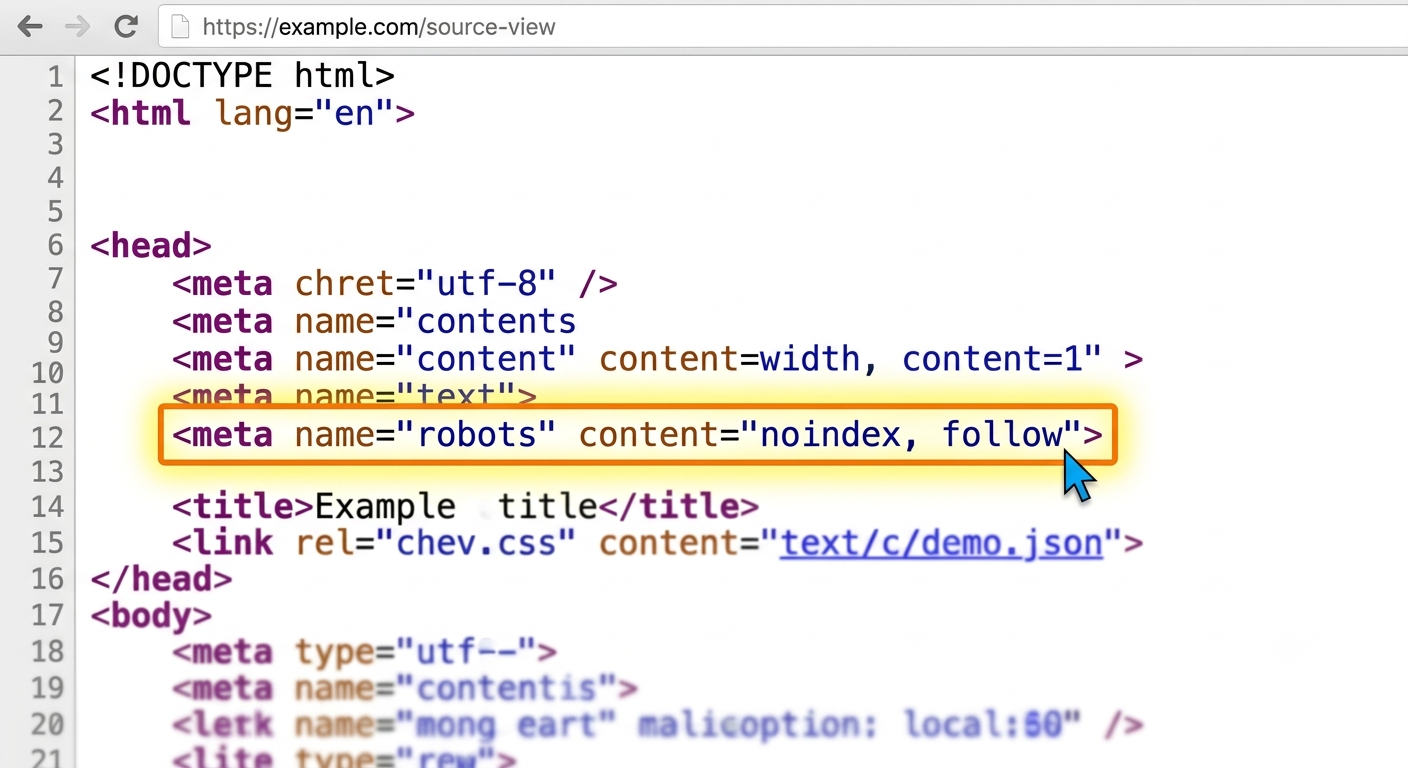
How to inspect the code:
-
Open the exact URL where your backlink is placed.
-
Right-click anywhere on the page and select “View Page Source” (or press
Ctrl + U). -
Press
Ctrl + Fand search for the termnoindex. -
If you see
<meta name="robots" content="noindex">, the page is barred from Google’s index. Contact the seller and demand a refund or an immediate fix.
Next, search for your own website URL in the code. Ensure the link does not have a rel="nofollow", rel="sponsored", or rel="ugc" tag unless you explicitly purchased that type of link. For maximum ranking power, you want a clean, dofollow link.
Step 3: Understand Google Search Console Reporting Delays
Before you run to your backlink provider screaming “scam,” you need to understand how Google Search Console actually works. GSC is not a real-time tracking tool; it is a slow, historical database.
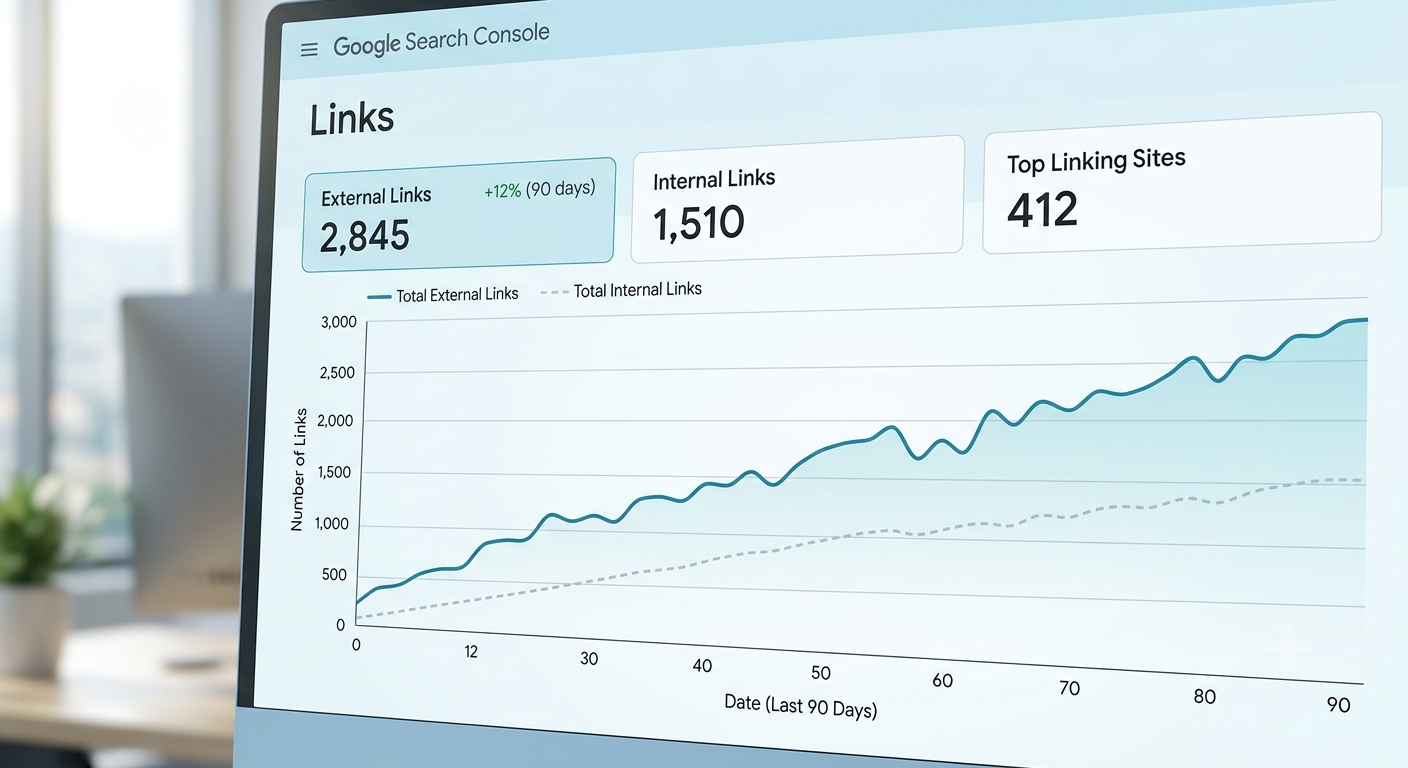
SEO Tip: Just because a link doesn’t show in the “Links” report in GSC does not mean Google hasn’t counted it. Google often processes and applies the “link juice” to your keyword rankings weeks before the link actually registers in your GSC dashboard. I have seen links take 30 to 60 days to show up in GSC, even while the site’s rankings were actively climbing.
Step 4: Check Organic Traffic on the Host Domain
If the page is not indexing, it might simply be because Google views the host website as low-value spam. Google’s quality algorithms routinely drop unhelpful, AI-spammed, or PBN-style domains from its index. If the entire domain has zero organic traffic, Googlebot won’t waste its crawl budget there, and your backlink will sit in the dark forever.
Use free tools like Ahrefs Webmaster Tools or Google Search Console itself to analyze your performance, or use third-party SEO audit platforms to see if the seller’s domain has dropped off a traffic cliff. If the site’s traffic is zero, your link won’t pass any real ranking power anyway.
How to Fix Unindexed Purchased Backlinks Fast (and for Free)
If you have checked the rules above and the link is clean (no noindex, no robots.txt blocks, and the site has traffic), but Google simply hasn’t crawled and indexed the page yet, do not waste your money on premium indexers or automated spam blasters. Those tools leave massive, unnatural footprints that can get your site penalized.
Instead, follow this proven, manual tier-2 blueprint to force Googlebot to find your backlinks naturally:
-
Leverage Social Signals: Share the exact URL of your purchased backlink on highly active social platforms like X (formerly Twitter), Reddit, or Pinterest. Googlebot crawls these high-authority platforms continuously. When it follows the social post, it will discover and index your backlink page.
-
Build Free Web 2.0 Tier 2 Links: Set up a free blog on a high-authority platform like WordPress.com, Wix, or Weebly. Write a quick, relevant 300-word article and drop a link pointing directly to your purchased backlink URL (not your money site!). Using web 2.0 backlinks to build a solid Tier-2 structure passes crawl budget and authority down to the purchased page, forcing natural indexation.
-
Ping the URL: Use free ping directories to submit the URL. This signals to various search nodes that new content has been published.
Your Safe Pre-Purchase Backlink Verification Checklist
To keep your hard-earned money safe and ensure every backlink you purchase indexes perfectly, follow this quick checklist before you hand over any cash:
-
Verify Real Organic Traffic: Make sure the domain receives consistent, real human traffic from Google.
-
Check Outbound Link (OBL) Ratios: Make sure the site isn’t linking out to hundreds of spammy, unrelated niches.
-
Request Indexing Guarantees: Only buy from sellers who offer a 30-day indexation guarantee or your money back.
-
Vary Your Anchor Text: Keep your anchor profile natural by mixing branded terms, naked URLs, and generic phrases. Do not over-optimize.
Keep your head down, follow this step-by-step diagnostic guide, and do not panic when GSC lag occurs. If you build clean, contextual links on real websites, the rankings will follow.