
We do all our work in house. But if you want to re-sell our services and make them look like your agency did the work you can follow the guide below.
I am going to show you exactly how you can create a professional backlink report for your SEO clients completely white label, without spending a single penny on expensive monthly reporting software.
If you are running an agency, freelancing, or reselling SEO packages, you already know the biggest headache. You buy a solid backlink package, you get a raw spreadsheet back from the vendor, and then you have to figure out how to hand that data over to your client without revealing your exact footprints or sources.
You can follow this guide step-by-step for free to turn raw backlink data into a stunning, unbranded client dashboard that will keep your clients paying you month after month.
Before we go any further, you should understand what a white-label backlink report actually is.
What is a white label backlink report?
A white-label backlink report is an SEO performance document or digital dashboard that has all third-party vendor names, logos, and footprints completely removed. It features only your own agency branding, logos, and specific metrics, making it look like the link acquisition work was done 100% in-house by your team.
Why Use a White Label Backlink Report?
When you know how to make a backlink report for clients white label, you protect your business.
Look, if you hand a client a raw Excel sheet full of messy web 2.0 URLs, tier 2 footprints, or the name of the marketplace where you sourced the links, two bad things are going to happen:
-
The client will try to bypass you and buy directly from the source next time.
-
The client will get totally confused by the raw technical layout and think you didn’t do any high-level work.
If you are trying to scale an agency, you cannot just drop raw lists. When agencies come to us to buy backlinks, they need a way to pass that power onto the end-user cleanly. By presenting a polished, branded dashboard, you show high-ticket authority. The client sees beautiful graphs showing Domain Authority (DA) and anchor text distribution, rather than a confusing wall of text.
Let’s look at the free tools we are going to use to build this today:
-
Google Sheets (For raw data cleaning)
-
Google Looker Studio (Completely free data visualization—formerly Data Studio)
Step 1: Strip the Vendor Footprints and Clean the Raw Data
Before you import anything into a dashboard, you must clean up the spreadsheet your link provider sent you.
Open up your data in Google Sheets. You need to create a clean, uniform table. Strip out any columns that contain internal vendor order numbers, ID tags, or the actual prices you paid for the links.
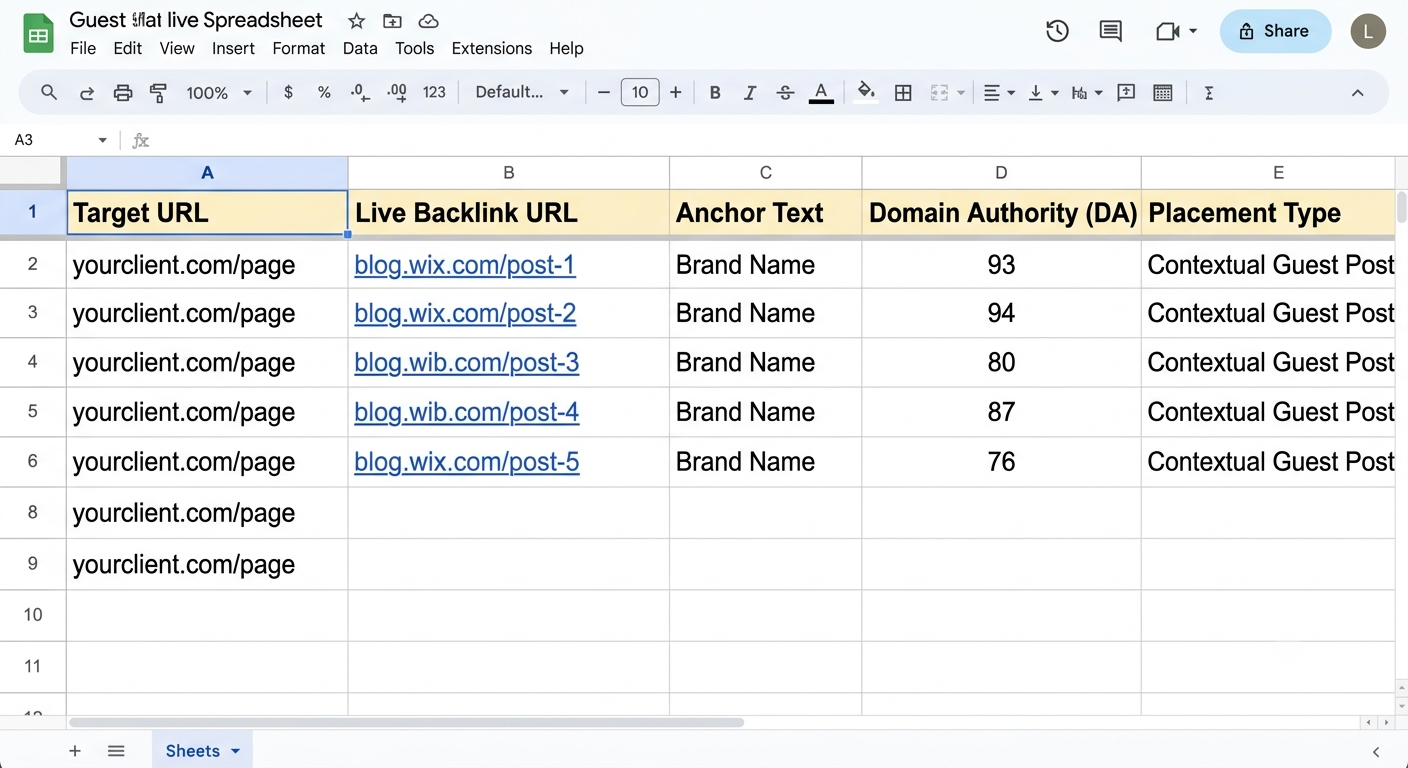
Your clean Google Sheet should only contain the vital metrics that clients actually care about. Make your columns look exactly like this:
| Target URL | Live Backlink URL | Anchor Text | Domain Authority (DA) | Placement Type |
| yourclient.com/page | blog.wix.com/post-1 | Brand Name | 93 | Contextual Guest Post |
| yourclient.com/page | hub.weebly.com/post-2 | Click Here | 92 | Tier 1 Web 2.0 |
Make sure the column headers are clean and spelled correctly. Google Looker Studio will use these exact headers to generate your automated charts.
Step 2: Build the Free White-Label Dashboard in Google Looker Studio
Do not go out and pay $99 a month for reporting software. We are going to use Google Looker Studio because it allows you to brand everything for free, and it updates automatically.
-
Head on over to Google Looker Studio and log in with your Google account.
-
Click on Blank Report to start a fresh project.
-
Under the “Connect to data” window, select Google Sheets.
-
Choose the spreadsheet you just cleaned up in Step 1 and click Add.
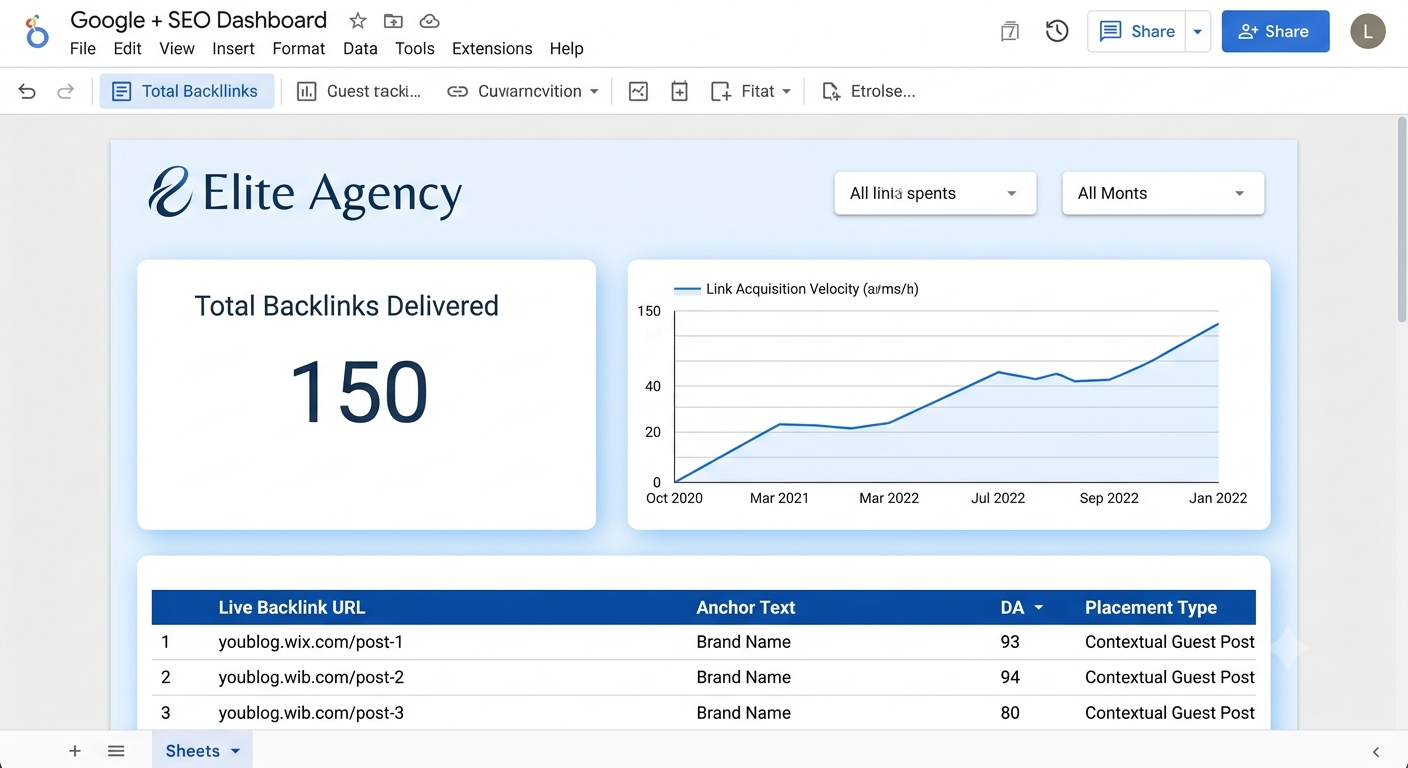
Now you have a live data stream. Let’s make it look like an elite agency product.
Add Your Custom Branding
At the top of the report, use the text tool to add your agency name. Go ahead and click the image icon to upload your official agency logo.
Change the background theme colors of the charts to match your brand’s exact hex color codes. This eliminates any generic “Google look” entirely.
Insert a Scorecard for High-Value Metrics
Clients love big numbers they can understand at a glance.
-
Click Add a chart and select Scorecard.
-
Set the metric to
Record Countand rename the label to Total Backlinks Delivered. -
Place this right at the top of your report.
Create an Anchor Text Pie Chart
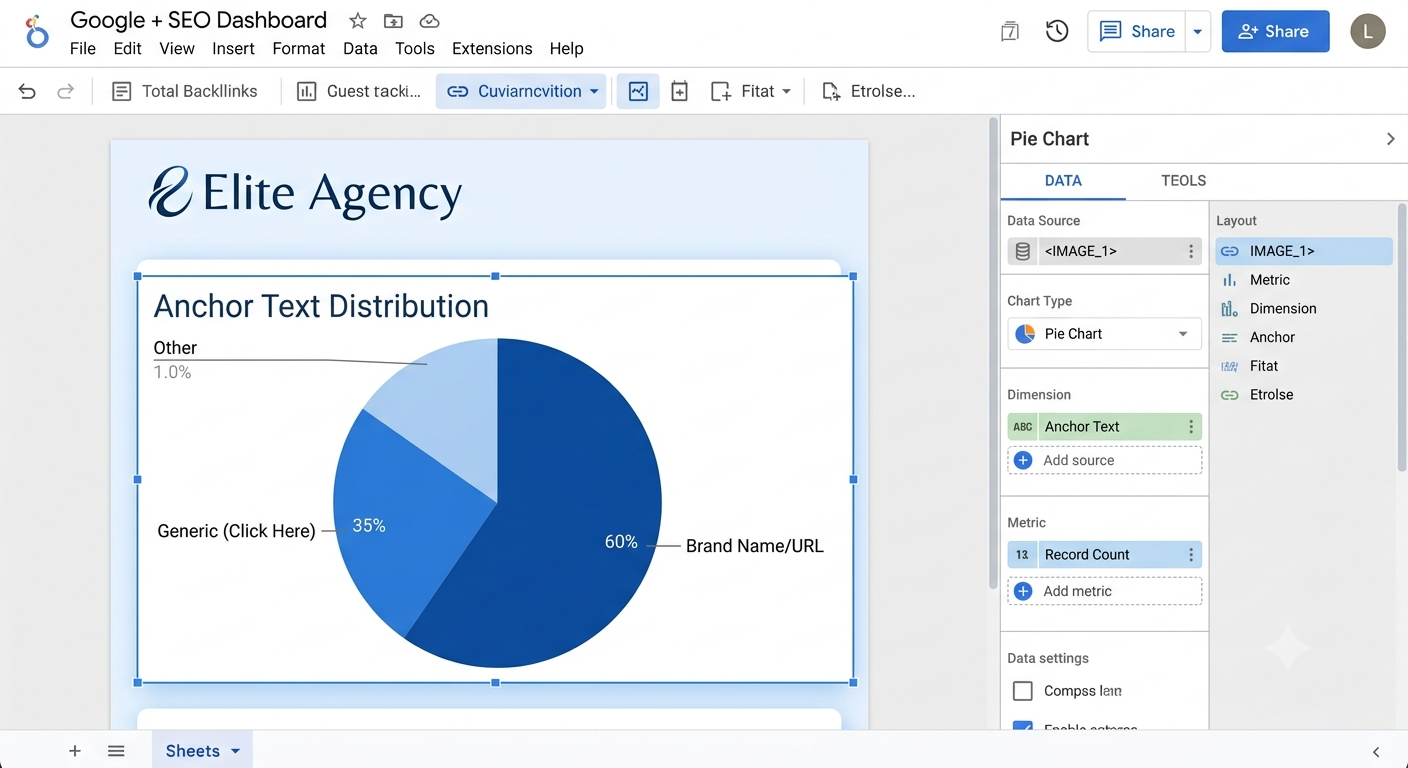
Showing a client their anchor text distribution proves you are building a safe, natural link profile.
-
Click Add a chart and select Pie Chart.
-
Set the Dimension to
Anchor Textand the Metric toRecord Count.
This instantly creates a visual chart showing that your link building is safe. If you want to dive deeper into planning these structures out beforehand, you can check our guide on how to map out a web 2.0 link wheel to see how safe foundational structures are organized.
Step 3: Add the Live Backlink Table for Complete Transparency
The final section of your white-label report should be the interactive data table where the client can actually see and click their new links.
-
Click Add a chart and select Table.
-
In the Dimension section on the right-hand panel, drag and drop:
Live Backlink URL,Anchor Text,Domain Authority (DA), andPlacement Type. -
Ensure the
Live Backlink URLis set as a clickable hyperlink type inside the data settings so the client can browse the live placements easily.
Once your layout is perfect, hit the Share button at the top right. You can generate a scheduled email delivery, download it as a branded PDF report, or grab a live, unbranded viewing link to send straight to your client’s inbox.
The “Confused Client” Trap: How to Present the Data
I used to make a massive mistake back in the day. I would just hand over a raw list of free backlinks or premium guest posts directly to a client via email.
Know what happened? The client would email me at 11 PM asking why their site metrics didn’t jump by 40 points overnight, or why the links weren’t showing up in third-party tools like Ahrefs or Semrush instantly.
Now, I include a tiny executive summary at the top of every white-label report. It saves me hours of support time. When you deliver these reports, make sure you highlight these three core pillars to your clients:
-
Anchor Text Ratios: Point out the pie chart and explain to the client why a heavy mix of brand name and raw URL anchors keeps their site completely safe from algorithmic penalty flags. If you blast a brand new client site with 100% exact-match commercial keywords, you’re going to burn the domain. Keep it safe.
-
Gradual Indexation: Remind the client that the Google search spider crawls pages at its own pace. Let them know that while the links are 100% live on the report, the link juice will continue to pass gradually as the search spiders discover and index the new URLs naturally over the next 30 days.
-
Tiered Structure: If your package included tier 2 or indexing strategies, explain how those secondary links are funneling power straight into their main tier 1 links without cluttering their main client-facing report.
This gives your client an incredible, high-value visual asset while positioning your agency as a top-tier authority that operates with 100% transparency.